 FocusWShell
Browser pages
When you are looking for a page, you should not need to know which window or browser it is in. 🗂 Pages, at the right of the monitor tabs in the deck, lists every tab of every Chrome and Edge window in one place.
It appears only while Chrome or Edge is open. The number is how many pages there were the last time they were read; they are read when you open the list and after you close one.
Two steps: sites, then pages
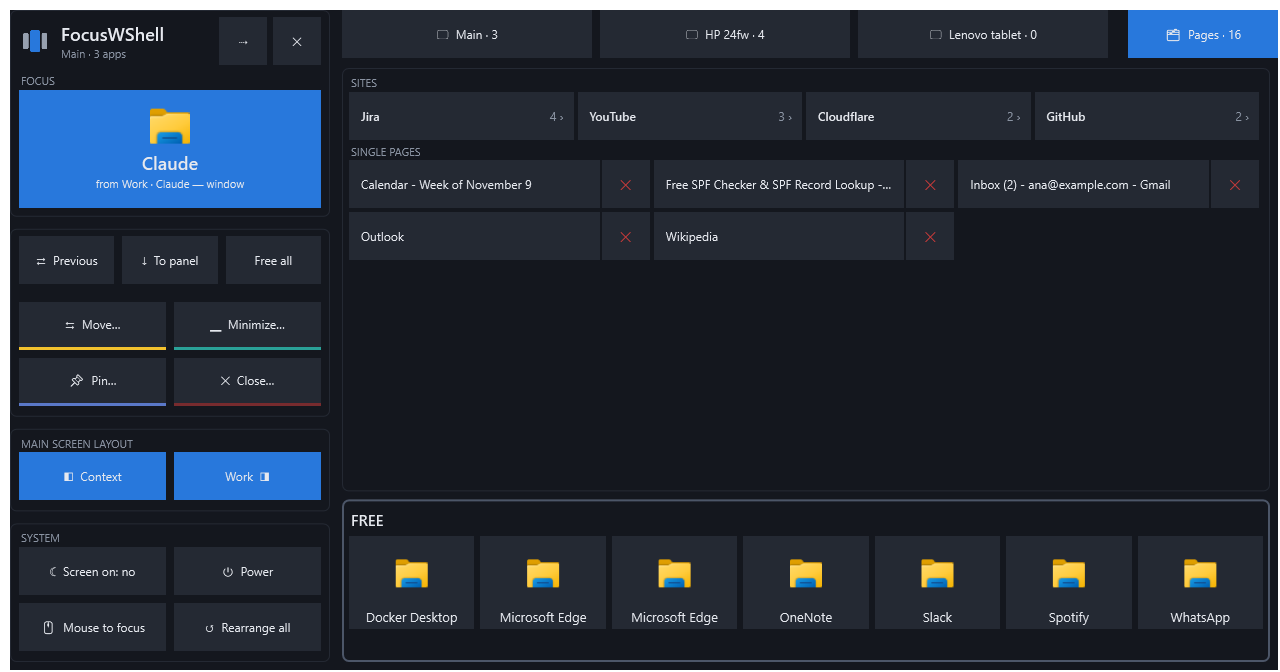
- Sites and single pages.
- Sites: sites with several pages, most first (“Jira · 9 ›”). Tap one to see its pages.
- Single pages: the rest, by title. Tap one to open it directly; its ✕ closes it.
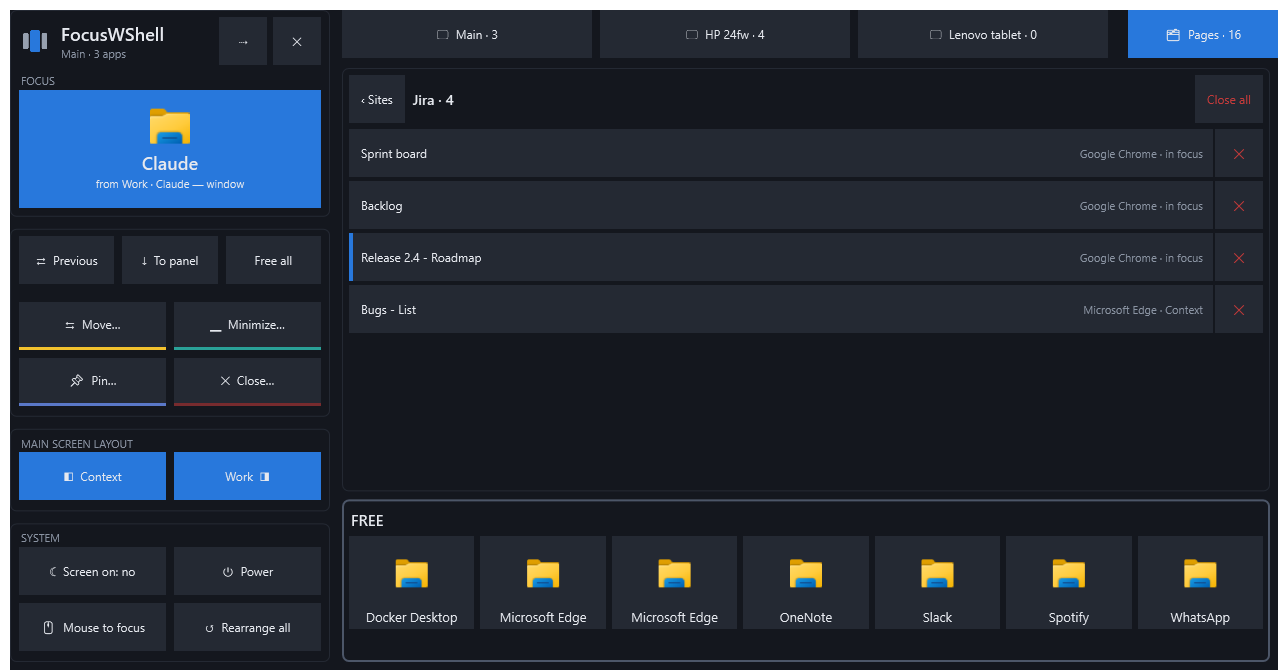
- The pages of a site.
- Each page without the site name, and the window it is in (“Google Chrome · in focus”).
- The page visible in its window has a blue bar.
- ✕ closes a page. Close all closes every page of the site, after a second tap.
Opening a page does the same as tapping its app: if its window is in a panel, it goes to the focus; if it is free, it is brought to the front. Then that tab is shown.
Closing a page does not change the visible tab of its window, nor move your mouse. Closed by mistake? Ctrl+Shift+T in that browser brings it back.
Drag with your finger to scroll. There is no search box on purpose: typing would make the deck take the keyboard.
How sites are found
| Browsers do not tell other programs the address of each tab, only its title. FocusWShell guesses the site from the titles: a part of the title counts as a site when it repeats in several pages, usually at the end (“… - Jira”, “… | Cloudflare”). It also recognizes a few common patterns (GitHub repositories, Gmail). |
When it cannot tell, the page is shown as a single page, with its own title. It never mixes two sites on purpose.
Privacy
Titles are read only while the list is on screen, and are never saved or sent anywhere.