FocusWShell
The deck
The deck is FocusWShell’s control surface: everything you can do, with big buttons for your finger. It never takes the keyboard from the app you are working on, so you can use it while typing.
New to FocusWShell? Set it up first with Getting started.
Open or hide it with Ctrl+Alt+Shift+D or Deck in the tray menu. In a corner of the main screen it hides by itself after you choose something; sent to a monitor, it stays.
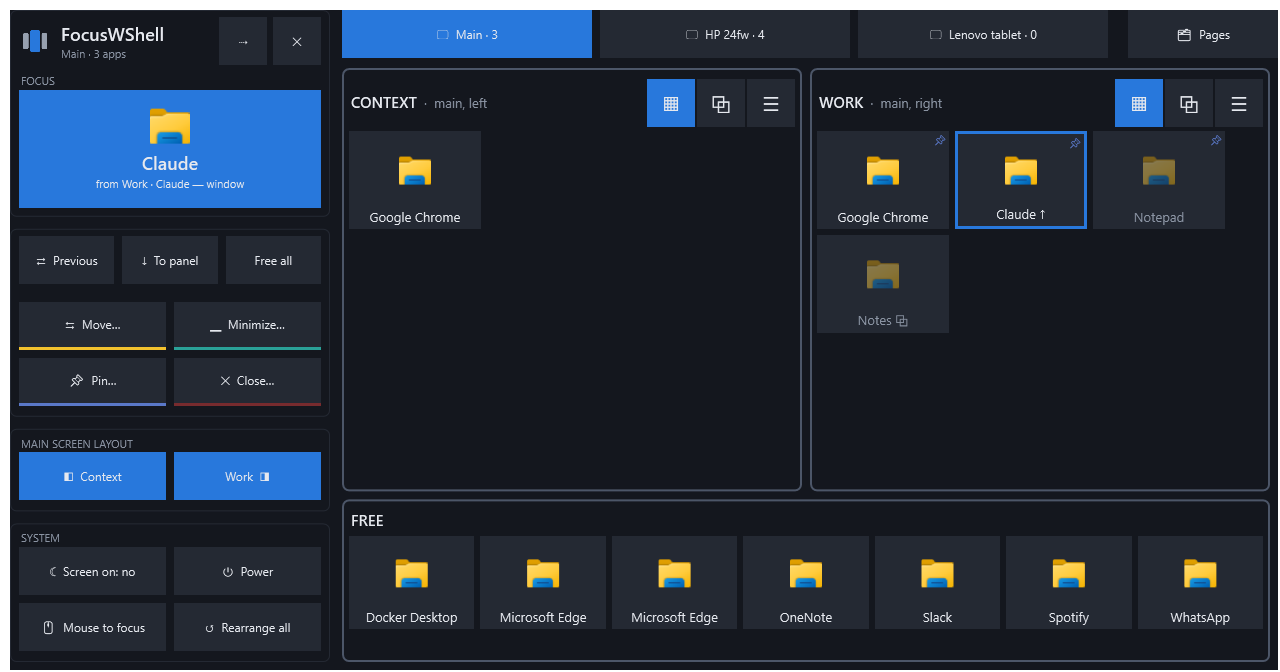
Focus
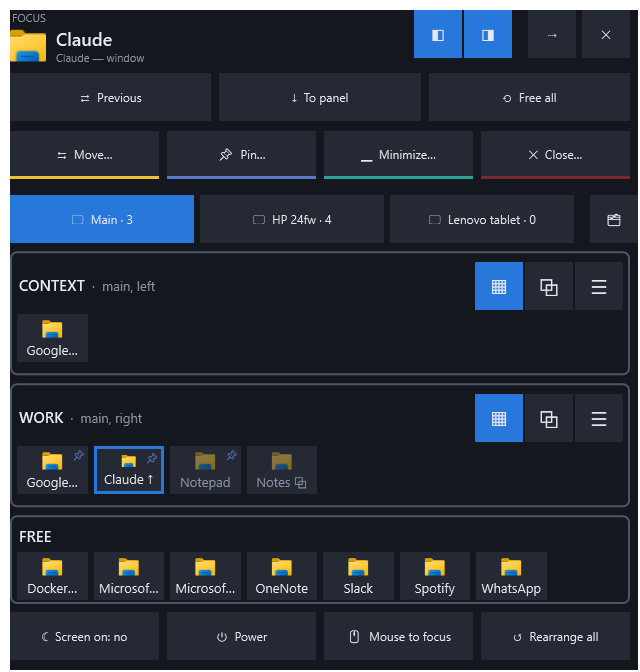
The app in focus has its own place. On a whole tablet it is a big tile at the top, under the FocusWShell name and above the buttons, with its icon, its name and the panel it comes from. When you type in another app (it is in use), that one shows next to it, smaller, with a white border. In the narrower deck it is at the top. Tap it to open its menu; in a mode, it works like any other app.
In its panel, the focus app has a blue border and ↑.
Actions
- Previous: brings back the app that was in focus before. Again, and you are back.
- To panel: sends the focus app back to its panel and leaves the focus empty.
- Free all: lets every window go back to where it was. It asks for a second tap. Rearrange all, in System, undoes it.
Mode buttons
Move…, Pin…, Minimize… and Close… do not act right away: they wait for you to tap an app, like Shift waits for a key. The «…», the colored bar under them and their position tell them apart.
- Move… (yellow): tap an app, then the panel where it goes. Another monitor’s tab works too, and so does the focus: it brings the app to the focus.
- Pin… (indigo): tap an app to pin it to its panel. A pinned app stays in its panel even when closed, dimmed, and tapping it opens it there.
- Minimize… (teal): tap an app to minimize it in its panel. If it was already minimized, it comes back. The mode turns off after one tap, like Close….
- Close… (red): tap an app to close it, as with its ✕. If it has unsaved work, the app asks.
Tap the mode button again to cancel.
Main screen layout
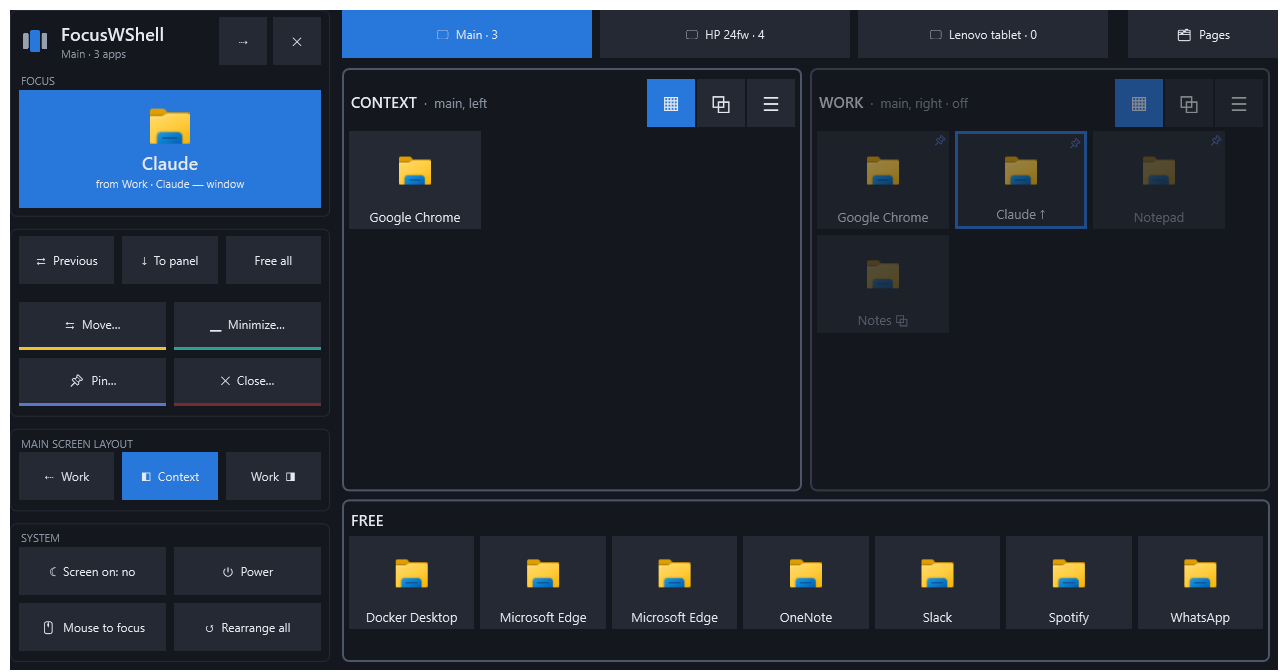
Turn the Context and Work columns of the main screen on or off (blue: on). On an ultrawide, an extra ⇠ or ⇢ appears when one side is off. See the main screen layout. Long-press a button for Reset width.
Monitors and panels
The row of tabs at the top chooses which monitor’s panels you see. Each panel shows its apps:
- Tap an app: to the focus. A free one is only brought to the front, and stays free.
- In a panel in tabs (or Fill): the tab you see is underlined. Tap a hidden one to show it in its panel and type in it, without moving it to the focus: you work in the focus and in it at the same time. Tap the one you see to bring it to the focus. The icons keep their place, and the app that leaves the focus comes back as the tab you see.
- Long-press (or right-click): its menu: to the focus, fullscreen on a monitor, minimize, move to another panel, free it, pin it.
- Drag an app onto another panel to move it, or onto Free to let it go.
- The panel header has its presentation (▦ ⧉ ☰ ⛶) and, in tabs, ◀ ▶.
Marks on an app:
| Mark | Meaning |
|---|---|
| Blue border, ↑ | In focus. |
| ⏸ | Minimized. |
| ↗ | Out of layout. |
| Dimmed | Closed (pinned), or its column is off. |
| ⧉ | Open on another virtual desktop; tapping it takes you there. |
| ▴ | In the tray: the app hid its window when you closed it, but it is still running. Tapping it opens the app again, and the app shows its window in the focus. |
| White border | In use: it has the keyboard and mouse, but it is not the focus app. |
🗂 Pages, at the right of the monitor tabs, shows the tabs of your browsers. See Browser pages.
Free
Windows FocusWShell does not organize. Tap one to bring it to the front; use Move… to put it in a panel.
System
- Screen on: keeps the screen from turning off and the PC from sleeping.
- Power: lock, sleep, restart, shut down or sign out. Restarting, shutting down and signing out ask for a second tap.
- Mouse to focus: moves the pointer to the focus app. After using a tablet, the pointer stays there; this brings it back to where you work.
- Rearrange all: after Free all, puts every window back in its panel.
Where the deck lives
⇢ at the top of the deck sends it to:
- a corner of the main monitor (it hides by itself), or
- another monitor, a half or the whole of it. With half, that monitor’s panels use the other half.
On a narrow deck, the buttons rearrange themselves, and the layout toggles move to the top.