 FocusWShell
How it works
A different way to use your PC
Without FocusWShell, every window floats on top of the others: you open, overlap, minimize and hunt for the one you need with Alt+Tab. FocusWShell gives each window a place and a role:
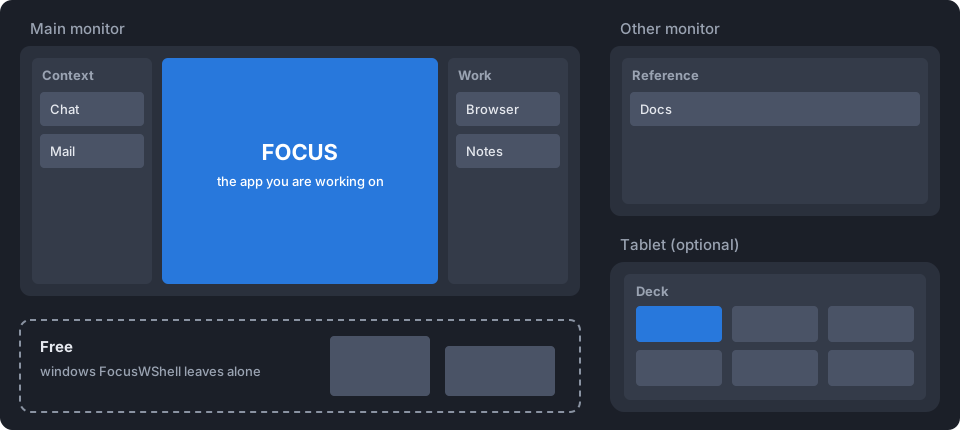
- One app in the focus, large, in the middle of your main monitor. It is what you are working on now.
- The rest in panels, around the focus and on your other monitors, always visible and always in the same place.
- The deck, on a tablet or in a corner, to switch between them with one tap.
- Free windows, which FocusWShell does not touch.
What changes day to day:
| You used to… | With FocusWShell |
|---|---|
| Alt+Tab through a pile of windows | Alt+Tab (or a tap in the deck) brings the app to the focus, and the previous one goes back to its panel |
| Maximize the window you work on | It is already large, in the focus |
| Minimize what gets in the way | Nothing gets in the way: the rest is in its panel |
| Drag and resize windows to see two at once | Each panel shows its apps side by side |
| Lose the chat behind the browser | The chat is always in its panel, in the same place |
The first days it feels strange not to arrange windows yourself. The idea is that you stop doing it.
Focus, panels and free windows
| What it is | Where it goes | |
|---|---|---|
| Focus | The app you are working on. There is only one. | The large area of the main screen. |
| Panels | Named groups of apps you keep at hand: Context, Work, Chat… | Columns beside the focus, and your other monitors. |
| Free | Windows FocusWShell does not organize. | Wherever you leave them. |
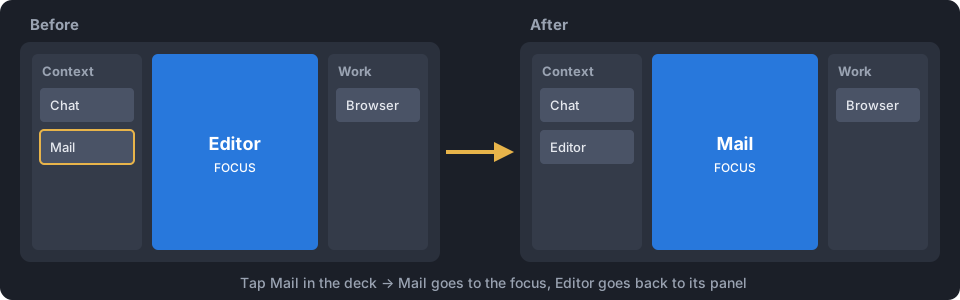
When you bring an app to the focus, the one that was there goes back to its panel. A window never changes place on its own: a chat message, a notification or a click does not move it.
Apps in a panel can also be:
- Minimized: open but set aside. They keep their panel and come back from it.
- Out of layout: you moved or resized one by hand; FocusWShell leaves it where you put it until you bring it back.
The main screen layout
Your main screen has two columns of panels, one on each side of the focus: Context on the left and Work on the right. Turn each one on or off, and the focus takes the rest:
| Columns on | Screen |
|---|---|
| Both | Context · focus · Work |
| Context only | Context · focus |
| Work only | focus · Work |
| None | focus fills the screen (focus only) |
When a column is off, its apps are minimized and wait in their panel; tapping one brings it to the focus.
On an ultrawide monitor (21:9 or wider) there are two more: with one side off, an extra button brings the other column to that side, so both panels sit together and the focus goes to the edge: Context · Work · focus, or focus · Work · Context.
Each layout remembers its widths. Drag the border between two windows to change them; Reset width in the menu of the layout buttons goes back to the default.
Panel presentations
Each panel shows its apps in one of these ways. Change it in the panel header in the deck.
- ▦ Tiles: every app visible, side by side. Apps that do not fit go to rows you scroll from the panel strip.
- ⧉ Tabs: one app at a time, the others behind it. Switch with the strip or with ◀ ▶ in the deck.
- ☰ List: a list with thumbnails, like File Explorer. It also lists the closed apps pinned to that panel.
- ⛶ Fullscreen: on monitors other than the main one, the panel’s app fills the monitor.
Strips
Above each panel there is a thin strip with one tab per app:
- Click: shows it in the panel (or restores it if it was minimized).
- Double-click: brings it to the focus.
- Right-click: everything else.
Several monitors
The main monitor holds the focus and its two columns. Every other monitor can have its own panels, up to two per side. If a monitor disconnects (a tablet over Wi-Fi, a laptop leaving its dock), its apps are kept safe; when it comes back, its panels come back too.
Always reversible
Before moving any window, FocusWShell writes down where it was. Exit, the emergency shortcut Ctrl+Alt+Shift+Backspace, and reopening after a crash all put every window back.
Common surprises
“My window moved when I chose it with Alt+Tab.” That is the idea: choosing a window that is in a panel brings it to the focus. To turn that off for Alt+Tab, Task view or the taskbar, see Shortcuts and gestures in the main window.
“I dragged a window and it went back.” Windows in a panel keep their place. Drop it on the focus or on another panel to move it there; to place it yourself, free it first.
“An app disappeared.” Its column may be off (its apps wait minimized in their panel), it may be minimized, or it may be behind another app in a panel with tabs. Look for it in the deck or in Windows: tapping it brings it to the focus.
“A window is not in the list.” Apps running as administrator cannot be moved and are listed at the end with the reason. Excluded apps are not listed at all: see Excluded in the main window.
“Everything is a mess.” Ctrl+Alt+Shift+Backspace puts every window back where it was. Rearrange all, in Home or the deck, puts them in their panels again.