 FocusWShell
Getting started
FocusWShell changes how you move between windows, so the first day feels different. This guide sets it up step by step in about ten minutes. Nothing moves until you say so: at first, every window is free and stays where it is.
If you have not read it yet, How it works explains the idea in one picture.
The way out, before anything else. Ctrl+Alt+Shift+Backspace puts every window back where it was, at any time. Exit in the tray menu does the same and closes FocusWShell. You cannot break anything.
Step 1. Open the main window
After installing, FocusWShell lives in the tray, next to the clock (look under ^ if you do not see it).
- Double-click the FocusWShell icon, or right-click it and choose Open FocusWShell.
- The main window opens on Home.
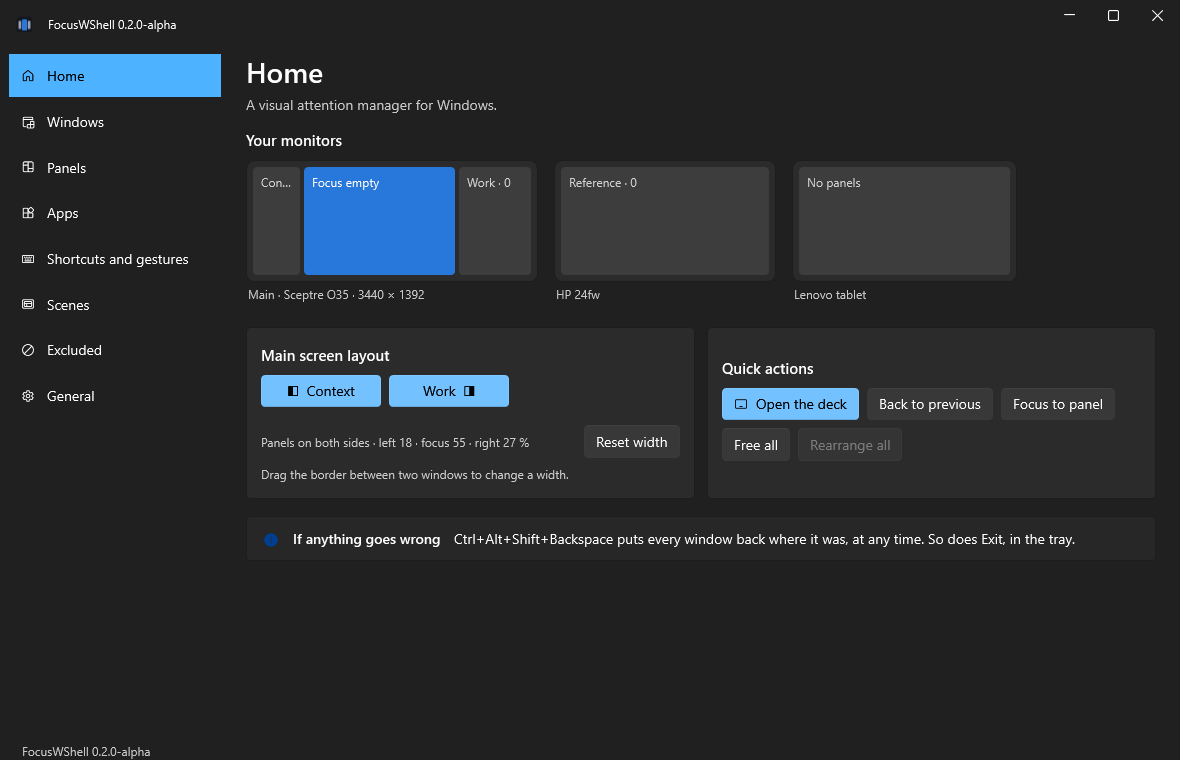
Your monitors is a map of your screens. The blue area is the focus, where the app you are working on goes. The grey ones are panels: Context on the left and Work on the right of your main monitor. The other monitors have no panels yet.
Closing this window does not stop FocusWShell: it keeps running in the tray.
Step 2. Decide what goes where
Before moving anything, think about your apps in three groups:
| Group | Typical apps | Where |
|---|---|---|
| What you work on | Your editor, a document, a design | The focus, one at a time |
| What you glance at | Chat, mail, calendar, music | The Context panel |
| What you work with | Browser, notes, terminal, file explorer | The Work panel |
| Everything else | Settings, a quick calculator, popups | Leave it free |
You can rename the panels or create more later. It is fine to start with only two or three apps.
Step 3. Put your windows in panels
- In the main window, open Windows on the left.
- Find a window in the list, for example your chat.
- In its Panel column, choose Context. It moves right away.
- Repeat with the others: a browser to Work, your mail to Context, and so on.
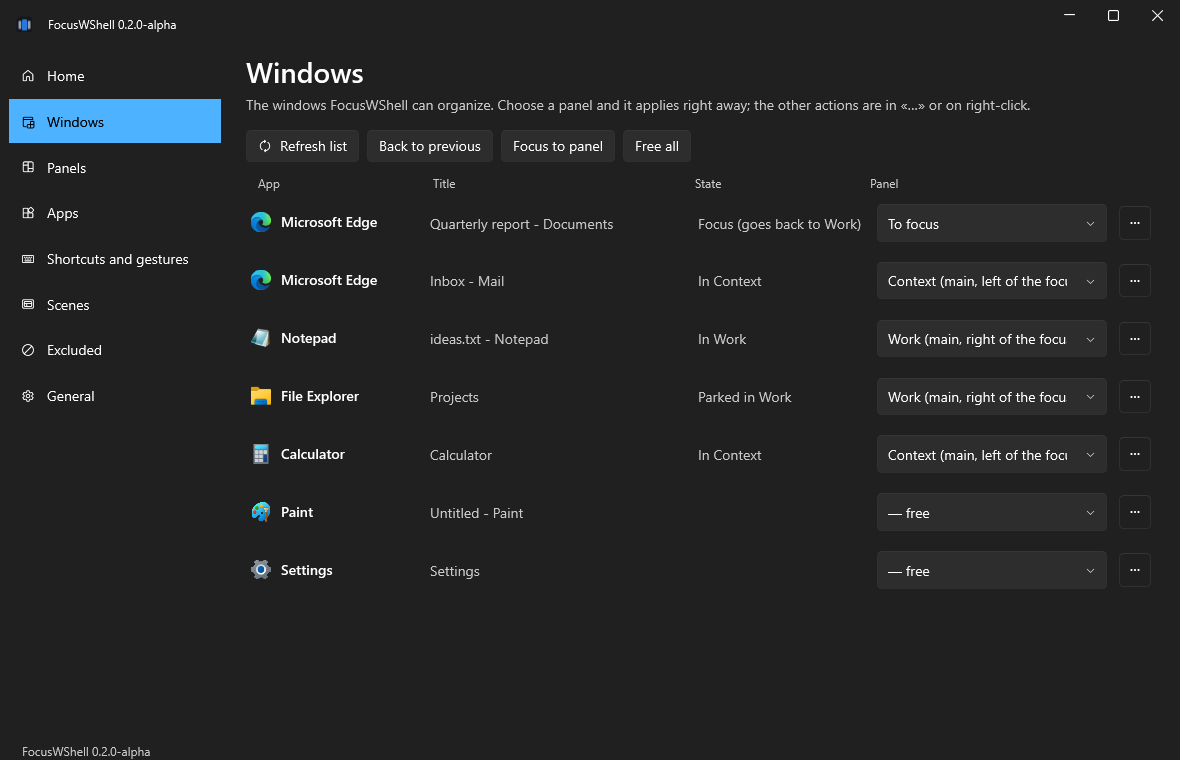
The State column tells you what FocusWShell is doing with each window. To let a window go, choose — free: it goes back to where it was.
The … button at the end of each row (or a right-click) has the rest: send it to the focus or fullscreen, minimize it, free it, or exclude its app so FocusWShell never touches it again.
Step 4. Bring an app to the focus
This is what you will do all day. Any of these brings an app from its panel to the focus:
- Alt+Tab to it, as usual, or click it on the taskbar.
- In Windows, choose To focus in its Panel column.
- In the deck (step 7), tap it.
The app that was in the focus goes back to its panel: nothing gets lost under other windows.
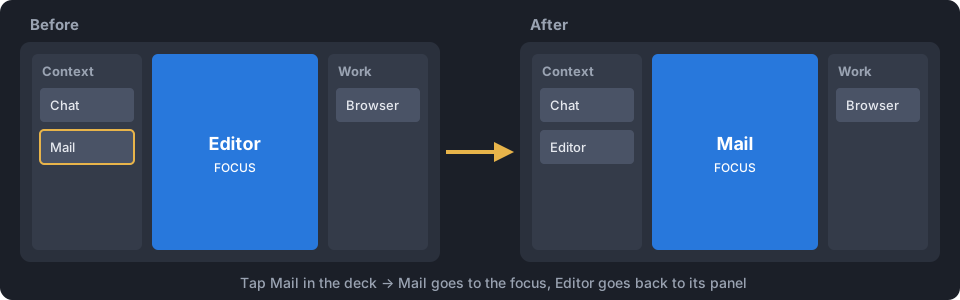
To go back, use Back to previous (in Home or the deck) or Ctrl+Alt+Shift+←. Again, and you are back.
Step 5. Choose the layout of your main screen
In Home, under Main screen layout, turn the Context and Work columns on or off:
- Both on (Context · focus · Work): best on an ultrawide.
- One on: the focus with one panel beside it. Best on a regular monitor.
- Both off: the focus fills the screen. Best when your panels live on other monitors.
When a column is off, its apps wait minimized in their panel. To change a width, drag the border between two windows; Reset width goes back to the default.
Step 6. Use your other monitors
If you have more than one monitor, give them panels too:
- Open Panels.
- In the last row, type a name, for example Reference.
- Choose where it goes: the monitor, left or right, top or bottom.
- Press Create panel.
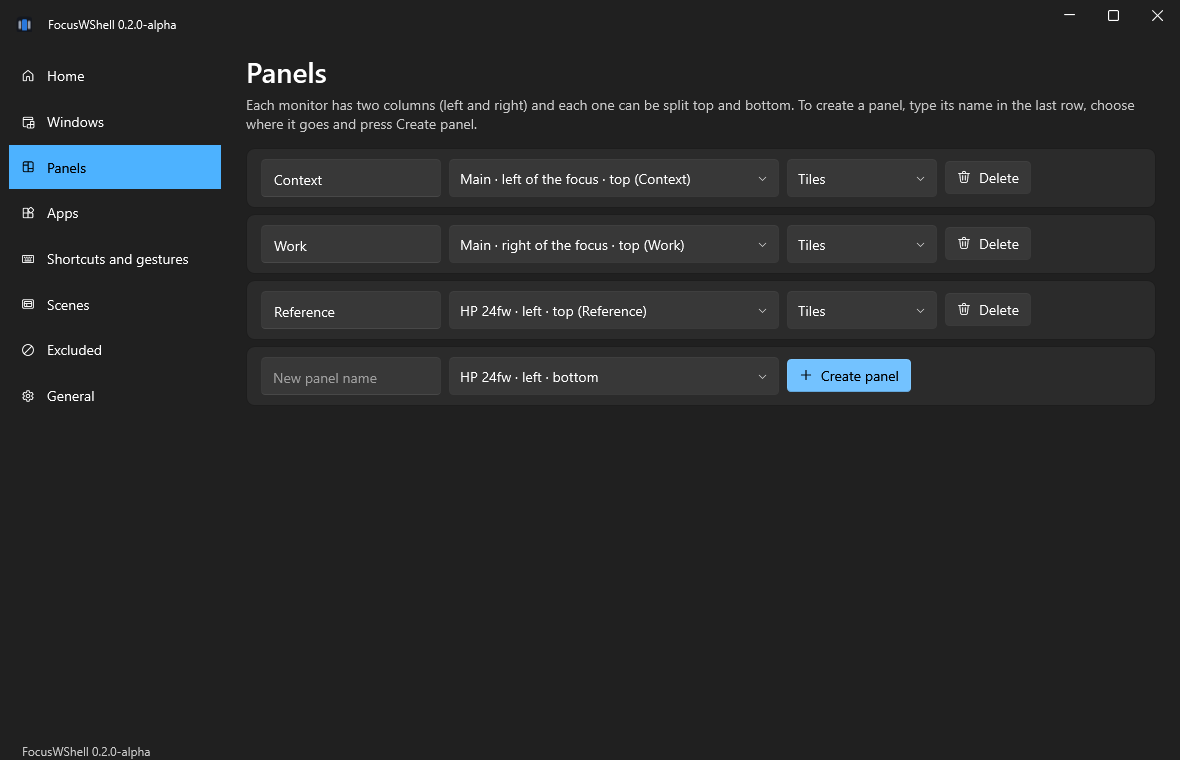
The new panel appears in Windows and in the deck, ready to receive apps. In the same section you can rename a panel (type and click elsewhere), move it, change its presentation or delete it. Deleting a panel leaves its windows free, where they are.
Step 7. Open the deck
The main window is for setting things up. For moving between apps all day, the deck is faster: big buttons that never take the keyboard from the app you are typing in.
- Press Ctrl+Alt+Shift+D, or Open the deck in Home.
- It opens in a corner of your main screen and hides itself after you choose.
- Tap an app to bring it to the focus. Use Move… to put a free app in a panel: tap Move…, then the app, then the panel.
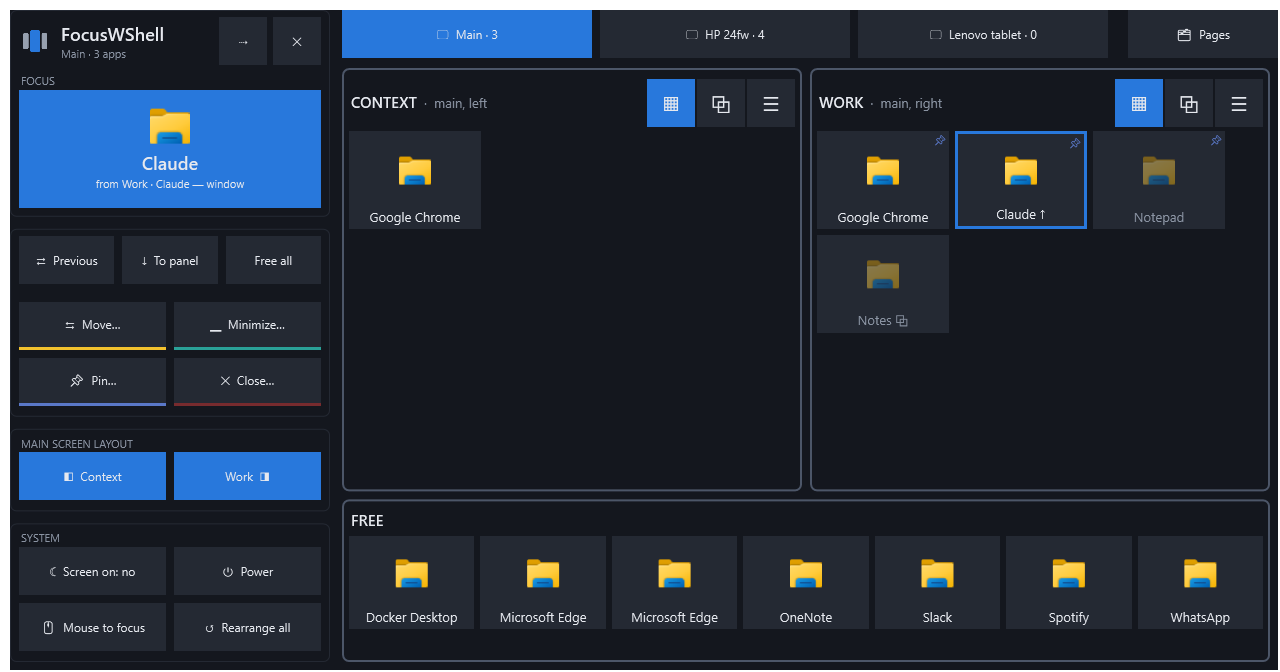
With a tablet, the deck can live there all the time: see Using a tablet. Everything about the deck is in The deck.
Step 8. Make it stick
- Start with Windows: in General, so FocusWShell is there every time you sign in. It remembers which app was in which panel and puts them back as they open.
- Save a scene: once your panels look the way you like, open Scenes, type a name and press Save current scene. Applying it later puts every app back in its panel, and can open the ones that are missing. See Save your setup as a scene.
Your first days
- Keep using Alt+Tab and the taskbar. They bring apps to the focus instead of piling them up.
- Do not drag windows to arrange them. FocusWShell keeps them in place. Drag a window onto another panel or onto the focus to move it there; anywhere else, it goes back.
- Lost? Back to previous brings back the app you were using. If everything looks wrong, the emergency shortcut puts every window back, and you can start again.
- After a few days, look at the step-by-step guides for more: other monitors, browser pages, shortcuts, scenes.