 FocusWShell
Main window and settings
The main window is where you set FocusWShell up and see how things are; the deck is for moving between apps all day. Open it by double-clicking the tray icon or with Open FocusWShell in its menu. Closing it does not stop FocusWShell: it keeps running in the tray.
It follows the look of Windows 11, in a dark or light theme, with its sections on the left. New to FocusWShell? Getting started walks through it step by step.
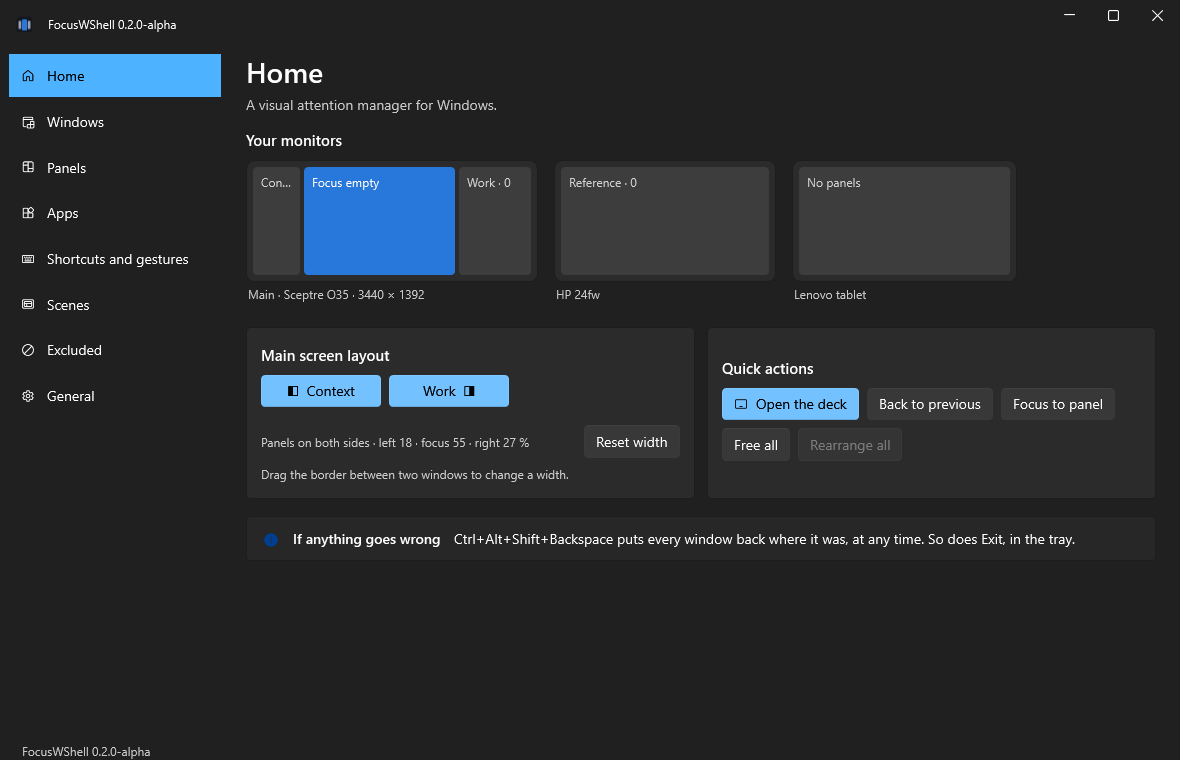
Home
- Your monitors: a map of each monitor. The main one shows its panel columns in the order and width of the current layout, and the app in focus; the others show their panels. Each panel says how many apps it has.
- Main screen layout: the same column toggles as in the deck, the current widths and Reset width.
- Quick actions: open the deck, back to the previous app, focus to panel, free all, rearrange all.
- A reminder of the emergency shortcut.
Windows
Every window FocusWShell can organize, with its app’s icon, its title and its state. Choose a panel and it applies right away: free, to the focus or any panel. The other actions are in … at the end of the row, or on right-click:
- to the focus, or fullscreen on a monitor;
- minimize or restore, re-fit, free it;
- how its size is handled (some apps have a fixed size);
- exclude its app or its kind of window.
Windows that cannot be organized are listed too, with the reason: for example, apps running as administrator.
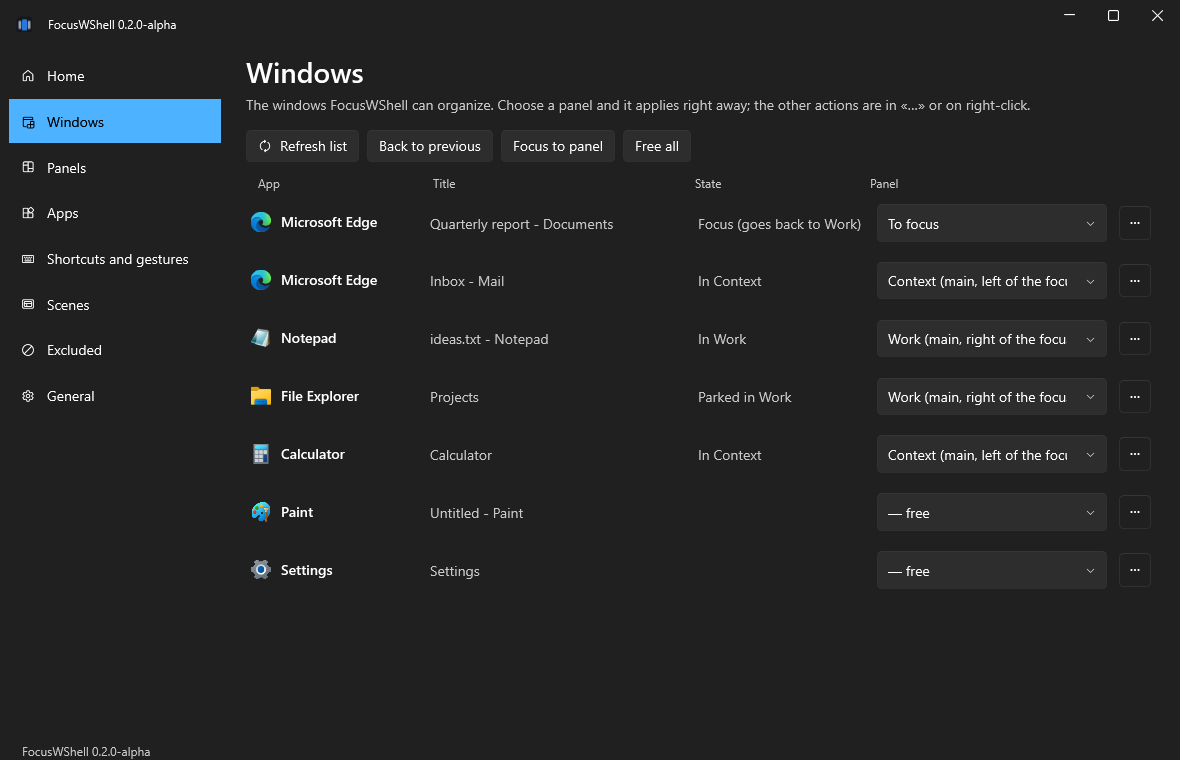
The buttons on top: Refresh list, Back to previous, Focus to panel and Free all.
Panels
Create, rename, move and delete panels. Each one has a place (monitor, left or right of the focus on the main monitor, top or bottom, up to two per column) and a presentation. Panels on other monitors can be Fullscreen.
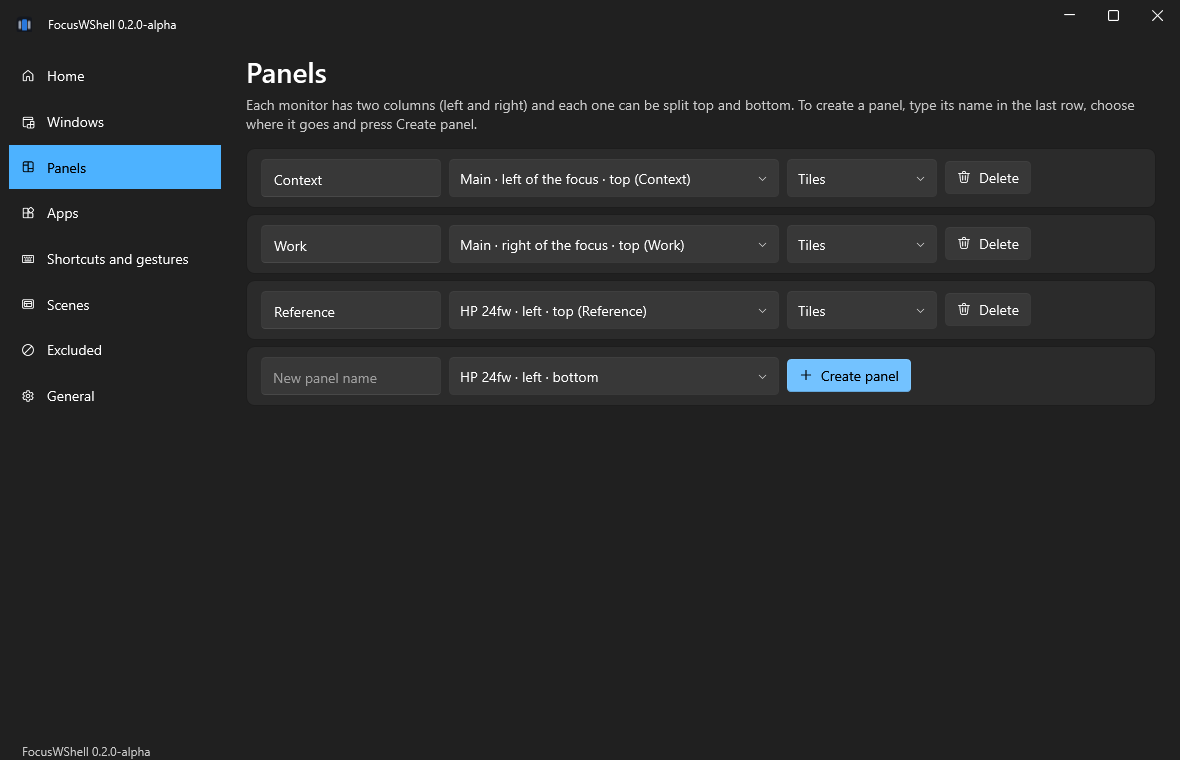
- Create: type a name in the last row, choose its place and press Create panel.
- Rename: type the new name and click anywhere else.
- Move: choose another place. A place that is taken shows the panel that has it, in brackets.
- Delete: its windows become free and stay where they are.
Apps
Every app FocusWShell has seen, with its icon. Rename how it is shown, open it in a panel, hide it from the deck or forget it.
Shortcuts and gestures
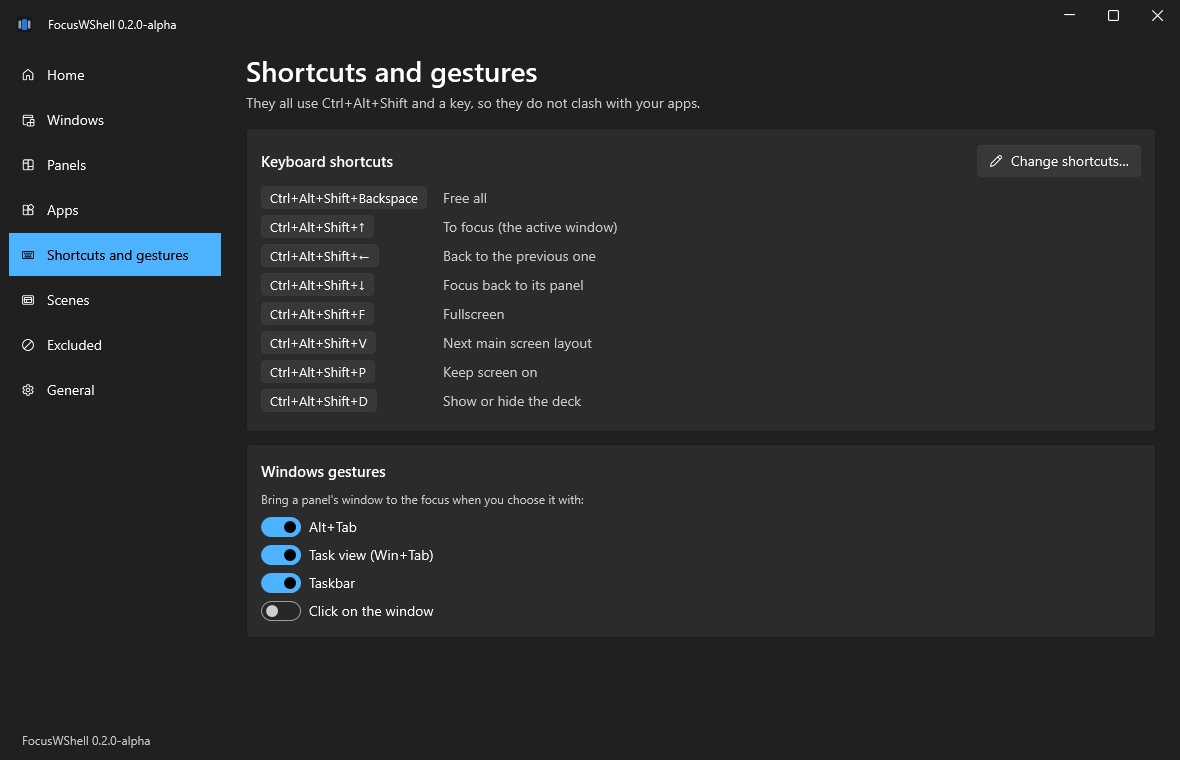
The shortcuts in use, and Change shortcuts… to set new ones. Under Windows gestures, choose whether Alt+Tab, Task view, the taskbar or a click bring a panel’s window to the focus. See Shortcuts.
Scenes
Apply, delete and save scenes: which apps are in each panel and in the focus. They also apply with Ctrl+Alt+Shift+1…9. See Save your setup as a scene.
Activity
How long each app spends in focus (in view, in the center) and in use (the one that gets the keyboard and mouse). Side by side is the time with one app in focus and another in use: for example, a document in view while you type in the chat.
It is off until you turn on Measure activity. It is kept only on this PC, without window titles, for 90 days; Delete history deletes all of it. Time stops counting after 3 minutes without touching the keyboard or mouse, and when you lock or sleep.
For each day: the active time, the time side by side, how many times you brought an app to the focus, and the longest stretch with the same app in focus. Below, each app with a blue bar (in focus) and a green one (in use).
Excluded
Apps FocusWShell should never touch, by executable, AUMID or window class. See Keep an app out of FocusWShell.
General
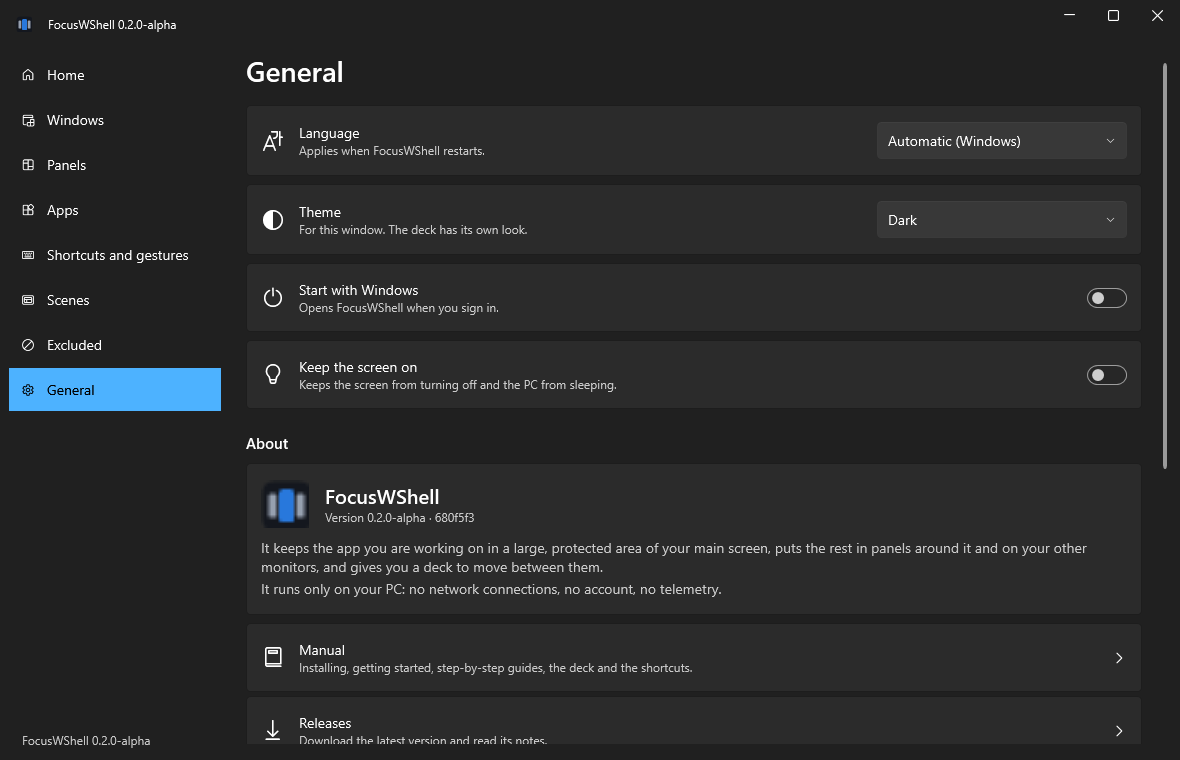
- Language: automatic (the one of Windows), English or Spanish. It applies when FocusWShell restarts.
- Theme: automatic (follows Windows), light or dark. It applies right away. The deck keeps its own look.
- Start with Windows and Keep the screen on.
- About: the version and the build, links to this manual, the releases, reporting a problem, the source code and the settings folder, the license and the open source components it uses.
Tray menu
- The version, on the first line: please mention it when you report a problem.
- Open FocusWShell, Deck.
- Keep the screen on.
- Free all.
- Start with Windows.
- Exit (puts the windows back).
Messages
What just happened (or what could not be done) appears in a strip at the top of the window, and goes away by itself.