 FocusWShell
Step-by-step guides
Short recipes for the things you will want to do once FocusWShell is running. If you are just starting, do Getting started first.
- Set up a regular monitor
- Set up an ultrawide
- Put panels on another monitor
- Use a tablet as the deck
- Add, rename or move a panel
- Change how a panel shows its apps
- Keep an app in its panel, even when closed
- Save your setup as a scene
- Keep an app out of FocusWShell
- Change a shortcut
- Choose what Alt+Tab and the taskbar do
- Take a break from FocusWShell
- Report a problem
Set up a regular monitor
On a 16:9 monitor there is room for the focus and one panel beside it.
- Open the main window (double-click the tray icon) and go to Home.
- Under Main screen layout, leave one column on, for example Work, and turn the other off.
- Put the apps you use most next to your work in that panel (Windows → Panel column).
- Put chat and mail in the other panel. Its column is off, so they wait minimized: tap one in the deck, or Alt+Tab to it, and it comes to the focus.
- Drag the border between the focus and the panel until the focus is wide enough. It is remembered.
Set up an ultrawide
On a 21:9 or wider monitor, use both columns.
- In Home, turn Context and Work on: Context · focus · Work.
- Drag the two borders to adjust the widths.
- If you prefer the focus at one edge, turn one column off. An extra button (⇠ or ⇢) appears: it brings the other column to that side, so both panels sit together: Context · Work · focus.
Put panels on another monitor
- In the main window, open Panels.
- In the last row, type a name (for example Reference).
- In the place list, choose the other monitor, left or right, top or bottom.
- Press Create panel.
- Open Windows and choose the new panel for the apps that go there.
Each monitor has two columns, and each column can be split in two (top and bottom): up to four panels per monitor. On a monitor other than the main one, a panel can also be Fullscreen: its app fills the monitor.
If you put all your panels on other monitors, turn both columns off in Home and the focus fills your main screen.
Use a tablet as the deck
- Make the tablet an extended monitor with a remote display app: see Using a tablet (tested with Apollo and Artemis).
- Open the deck (Ctrl+Alt+Shift+D).
- Tap ⇢ at the top of the deck and choose the tablet: whole, or half if you want panels in the other half.
The deck stays on the tablet. If the tablet disconnects, it goes back to the corner of the main monitor, and returns when the tablet does.
Add, rename or move a panel
All of it is in Panels, in the main window:
- Add: type a name in the last row, choose its place, Create panel.
- Rename: click its name, type the new one and click anywhere else.
- Move: choose another place in its list. If that place is taken, the list says by which panel.
- Delete: Delete, and confirm. Its windows become free and stay where they are.
On the main monitor, Context and Work can each be split top and bottom, for example Chat on top and Mail below.
Change how a panel shows its apps
A panel can show its apps in four ways (see presentations):
- In the deck: tap ▦ (tiles), ⧉ (tabs) or ☰ (list) in the panel header. ⛶ (fullscreen) only on other monitors.
- In the main window: Panels, the third list of each panel.
Tiles for panels with two or three apps you want to see at once; tabs for a panel with many apps you use one at a time; list to see thumbnails and the closed apps of that panel.
Keep an app in its panel, even when closed
Pin it, and its place in the panel stays when you close it: dimmed, and one tap opens it there.
- In the deck, tap Pin… (indigo).
- Tap the app.
To unpin it, do the same again. You can also pin from an app’s menu (long-press, or right-click).
Save your setup as a scene
A scene remembers which apps are in each panel and which one is in the focus.
- Arrange your apps the way you like.
- In the main window, open Scenes.
- Type a name (for example Coding) and press Save current scene.
To apply it, choose it in the list and press Apply scene. With Open missing apps on, the apps that are closed are opened in their panel. The first nine scenes also apply with Ctrl+Alt+Shift+1…9: the number next to its name in the list. To update a scene, save again with the same name.
Keep an app out of FocusWShell
Some apps are better left alone: a game launcher, a video call, a tool that floats on top.
- From the list: in Windows, open … on its row (or right-click it) and choose to exclude its app or its kind of window.
- By hand: in Excluded, choose Executable, AUMID or Window class, type it (for example
Zoom.exe) and press Exclude.
Excluded apps are freed right away, and FocusWShell stops showing them. Remove the rule in Excluded to bring them back.
Change a shortcut
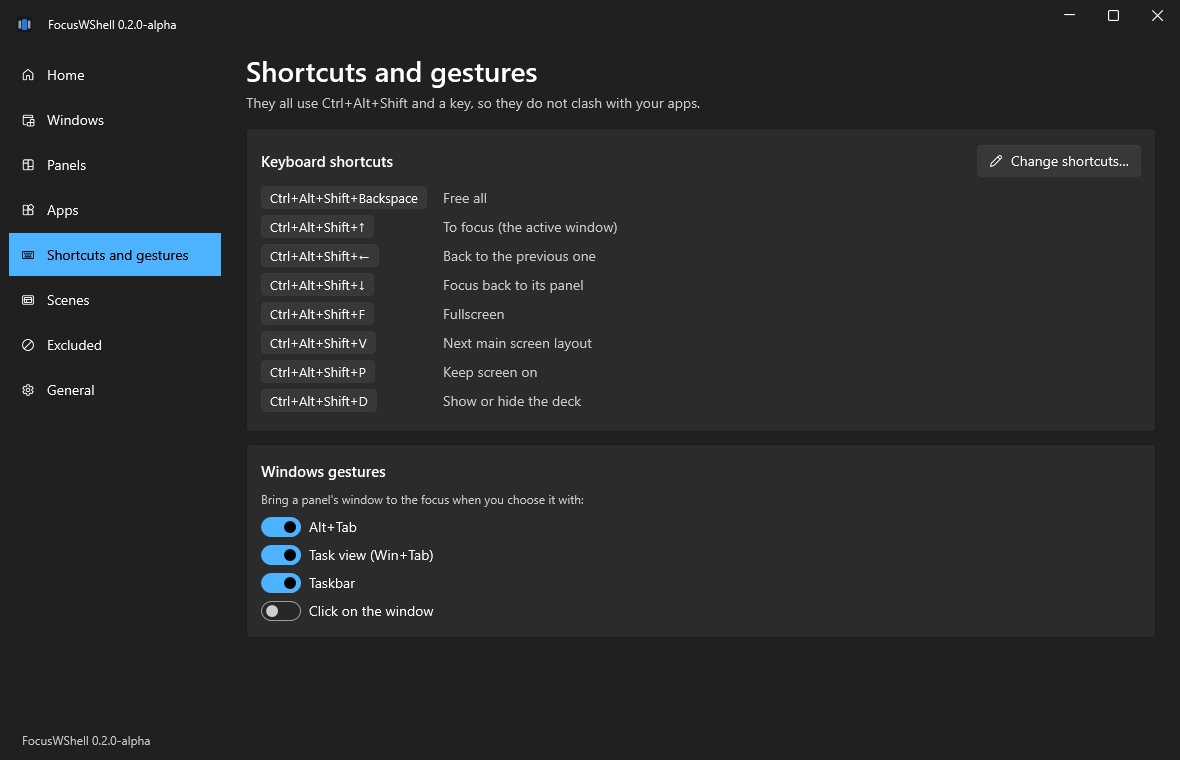
- In the main window, open Shortcuts and gestures.
- Press Change shortcuts….
- Click the shortcut you want to change and press the new combination. It needs Ctrl, Alt or Win.
- Press Save. Default puts back the original one.
It works right away. While that window is open, the shortcuts are paused. The emergency shortcut can be changed, but never removed. The defaults are in Shortcuts.
Choose what Alt+Tab and the taskbar do
By default, choosing a window that is in a panel with Alt+Tab, Task view or the taskbar brings it to the focus. Clicking on a window does not.
To change it, open Shortcuts and gestures and turn each one on or off under Windows gestures.
Take a break from FocusWShell
- For a moment: Free all (in Home or at the top of the deck) lets every window go back to where it was. Rearrange all puts them back in their panels.
- For good, this session: Exit in the tray menu puts every window back and closes FocusWShell.
- Something is wrong: Ctrl+Alt+Shift+Backspace, at any time.
Report a problem
- Note the version: it is on the first line of the tray menu, and in General → About.
- Write down what you did, what you expected and what happened. A photo of the screen helps.
- Open a new issue and choose Bug report.
If FocusWShell failed, there may be an errors.log in %LOCALAPPDATA%\FocusWShell: attach it. See Feedback and privacy.